Getting started
Arcanum is made for several devices working together live. You can start with one device and expand later; see Step by step.
Arcanum is a till system for clubs, youth movements and events: a till, ordering at the table and with a QR code, screens in the kitchen, and reports. It runs in the browser; you need no special hardware.
Who it's for
Arcanum is made for events run by associations: youth movements, sports clubs, a fundraising dinner, a party, a tournament. Much of this manual is about waiters, the kitchen and the bar, but the till works just as well on its own, e.g. for a stall or a small shop.
Important to know:
- Arcanum is not a registered cash register system (in Belgium: GKS / SCE). If you are legally required to use one, Arcanum isn't suitable yet.
- Arcanum doesn't do VAT returns and isn't linked to accounting software. The reports show turnover per VAT rate, as an aid for your bookkeeping, but nothing more.
That is why Arcanum is meant today for events of youth movements, sports clubs and other associations. VAT and a link with accounting software will come in a next phase.
Trying it
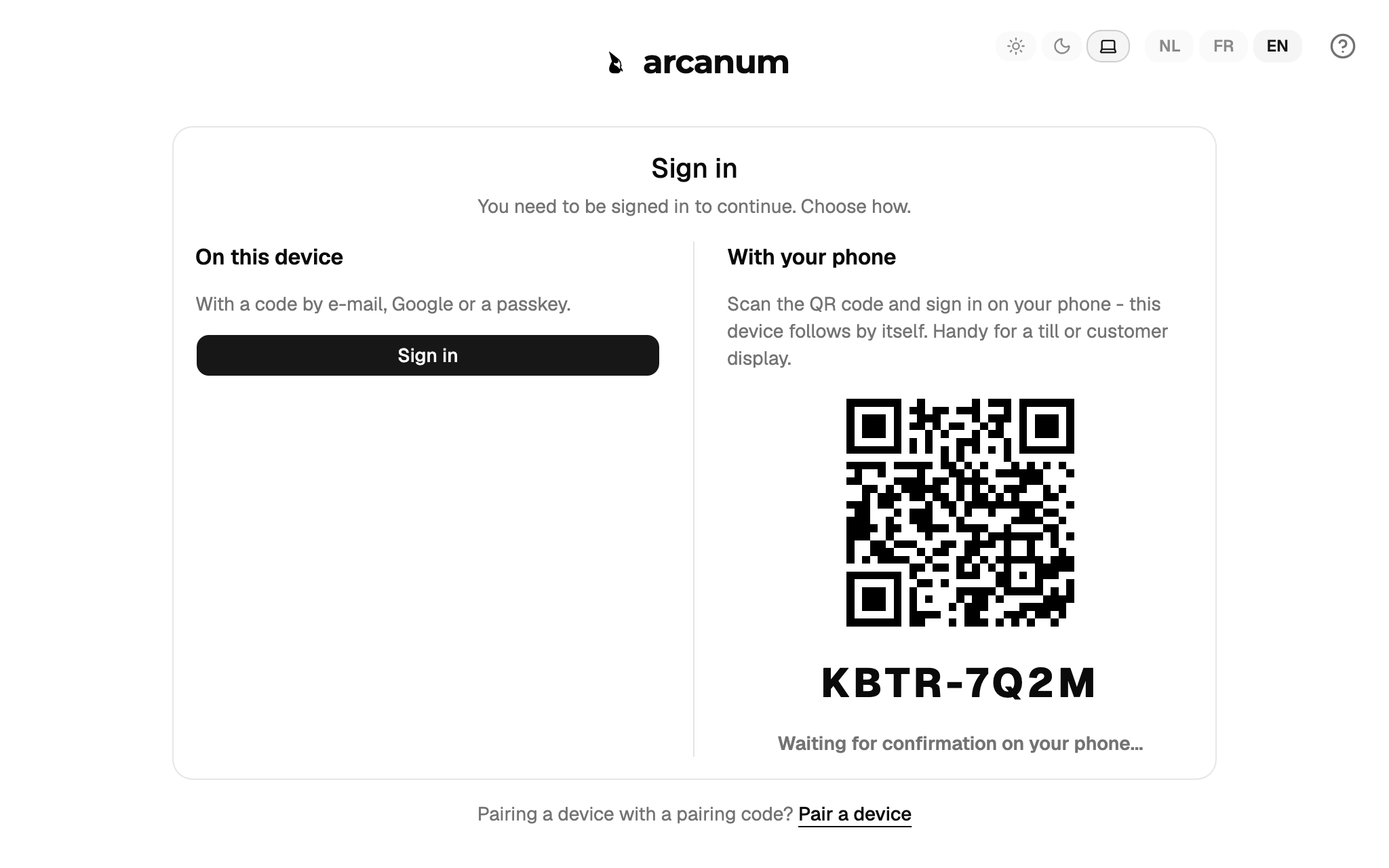
On the home page, choose Start the demo. Without an account you get a demo organisation straight away, with a sample menu, which disappears by itself after 4 hours. If you sign in, you will find your demo again.
Your own installation
If you want to really use Arcanum, you start your own installation. You choose where it runs:
- On a free Cloudflare account: nothing to manage yourself. The free plan is enough for most organisations; see What it costs.
- In your own Kubernetes cluster, with Helm.
- On one machine of your own, with Docker or Podman.
Choose Own installation on the home page and follow the steps. Your data stays with you, and updates take one click (see Updates and help).
Removing an installation
If you no longer need an installation on your own Cloudflare account, you can remove it yourself:
- Choose Own installation on the home page and paste your Cloudflare token.
- Next to each installation on the account is a button Remove <name>. Choose the one that can go.
- You first see what goes: the Workers, the databases, the KV storage and the own addresses. All data in the databases is gone for good afterwards (organisations, sales, cash drawers). Export what you want to keep first, with Settings → Data.
- Type the installation's name to confirm, then choose Remove <name> for good.
Arcanum removes the installer first and then the rest, and disables the installation's sign-in at login.kaboutersoft.be. If something fails, you get a list of what is left for you to delete in the Cloudflare dashboard (Workers & Pages, D1, KV). This cannot be undone.
Your first organisation
- Open your installation in a browser and sign in.
- Create an organisation, e.g. the name of your club. You become its administrator yourself. Start with an example menu is ticked by default: you then get the demo's menu (drinks, food and tokens, with prices), so the till can sell right away. You can change or remove everything later.
- You arrive in the console: that is where you set everything up. See The console.
- On the Dashboard, the Getting started card stays until you have a menu and a till. It guides you step by step to your first sale; see below.
Already worked with Arcanum on another installation? Take your data along with Settings → Data: export on the old one, import on the new one.
The Getting started card
On the Dashboard of a new organisation, the Getting started card stays until you have a menu, a till and a cash drawer:
- Your menu: choose Add the example menu (only in an organisation without products or menus) or Create my own products.
- A till: choose Use this browser as a till, and the till opens in a new tab, or Pair an iPad or tablet for the usual pairing (see Devices). After Use this browser as a till, the till offers to install itself as an app.
- A cash drawer, if you take cash. Does your club work without cash? Choose Not needed: the step then shows "No cash drawer needed. You can always add one later under Cash drawers."
With Hide you remove the whole card. That applies to that organisation, in that browser.
What to set up first
A good order for a first evening:
- Products and a Menu, with the prices.
- Possibly an Event, for the reports per event.
- Pair a Till under Devices, and possibly a customer display. See Devices.
- Payments by card or Bancontact: see Setting up SumUp and Setting up Bancontact. Cash works right away.
- For those who help: Users with an account, or Staff with just a name.
After that you can sell: see The till.
Start simple, with just the till, and grow once that runs smoothly: a customer display, screens for the bar and the kitchen, waiters with their phones, and ordering with a QR code. See Step by step.