The customer display
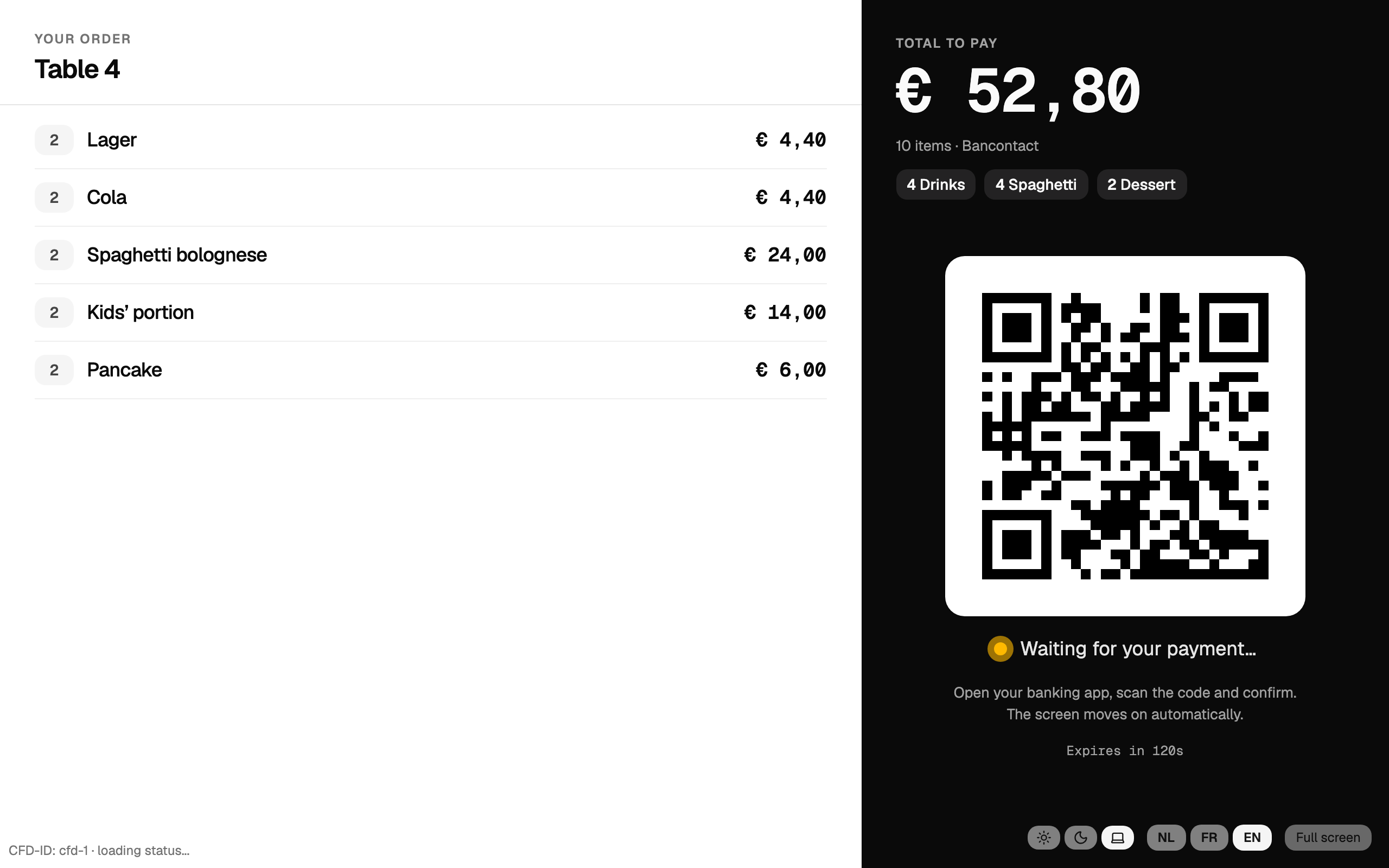
The customer display stands next to the till, turned towards the customer. It shows what is ordered, the amount and, for Bancontact, the QR code to pay. A tablet, an old laptop or a second screen at the till is enough.
Pairing
A customer display belongs to one till. You have three ways:
- As a device of its own: in the console, under Devices → Add device, type Customer display, and choose the till under For which till?. See Devices.
- From the till: in Settings → Link customer display on the till itself.
- A second screen at the till: tap Customer display at the top of the till. It opens in a new window; drag it to the second screen and choose Full screen.
What the customer sees
- While you enter the order: the order, line by line, and the total. With Show order on the till you turn this on or off, e.g. while you check bills.
- At payment: the amount and how to pay. For Bancontact there is a QR code; the customer scans it with their banking app. For a split bill, the customer sees their share.
- After payment: a thank you. If the order goes to a station, it also shows the order number and a QR code to follow on their own phone when it is ready.
- At rest: "Ready for the next order", with your organisation's logo.
The language is that of the till. The customer can choose another language on the customer display itself.
In your own colours
In the console, under Settings → Appearance → Customer display, you give the customer display:
- your Logo (PNG, JPEG, WebP or SVG; a transparent background looks best);
- a Main colour for the top bar and the total;
- an Accent colour for the stripe below it and the quantities.
An event can have its own colours, e.g. the club colours for a tournament: under Events → Set up → Colours on the customer display.