Self-ordering and station screens
Guests can order themselves on their phone: they scan a QR code, choose from the menu and pay at the counter or with Bancontact. Their order arrives, like those from the till and the staff, on the screen of the station that prepares it: the kitchen, the bar.
Setting up self-ordering
In the console, under Events → Set up:
- Turn on Guests order themselves with their phone. If the event has no ordering mode yet, one is made (Eat in) with your menu.
- Under How guests pay, choose: At the counter, with their number, With Bancontact, on their phone, or both. Bancontact must be set up for that (see Setting up Bancontact).
- Print the QR code and put it on the tables or at the counter. With Copy link you can also share the link another way, for example on social media.
If the event has more ordering modes with With the QR code, for example Eat in and Take away, guests first choose how they order. Each ordering mode also has a Direct link that skips this choice.
With Make a new link, the old link and QR code stop working. With Start again at 1, the order numbers start again at 1.
How a guest orders
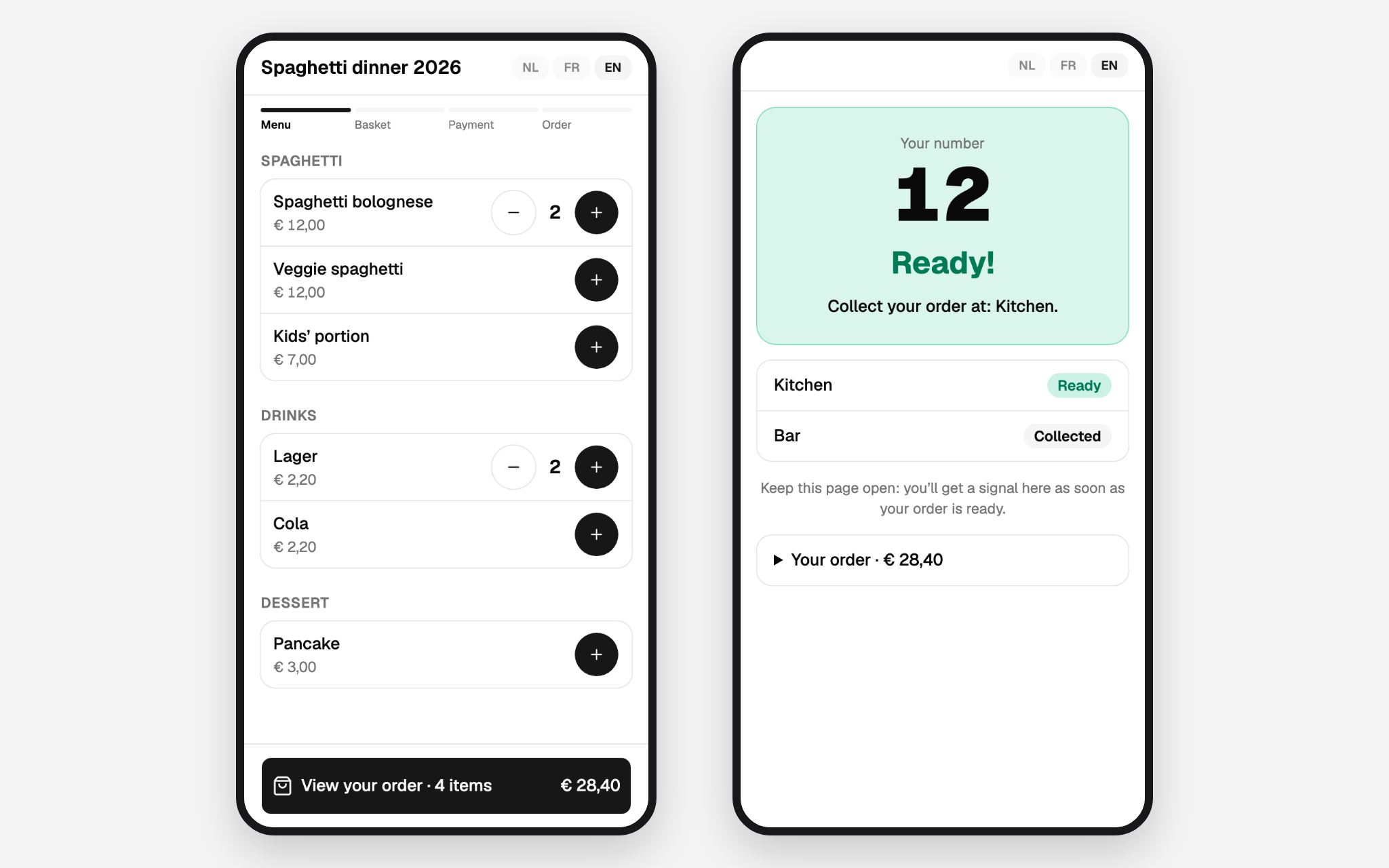
- The guest scans the QR code, chooses from the menu and taps View your order and Continue.
- Paying at the counter: the guest taps Place order, gets a number and says it at the counter. If nothing is paid within 10 minutes, the order expires.
- Paying with Bancontact: the guest pays straight away in the Bancontact app or their bank’s app.
- As soon as the order is paid, it is prepared. The page shows how far each station is, and says when something is ready, with where to collect it.
If the guest wants a signal when the page is closed, they can get a notification on their phone. If SMS is set up for your installation, they can also get an SMS (turn on SMS when it’s ready in the ordering mode).
Paying at the counter
When a guest comes to pay with a number, look it up at the till with the search field on the left (Bill or #number) and take payment as usual. The order is there as Self-order. On the station screen it shows as Not paid yet until then; with Paid only you hide such orders there.
Ordering more on a bill
Turn on Order on their tab, pay when leaving, and everything goes on one bill: guests order more whenever they like, the stations prepare it straight away, and they pay when leaving, at the counter or with Bancontact. With Ask a name and mobile number or e-mail you know who forgot to pay; that data is erased once the bill is paid.
With ordering on a bill, nothing checks that everyone pays. Use it where you know your guests.
The station screen
A station screen shows the tickets of one station, for example the kitchen. Pair it as a Station screen under Devices and choose the station (see Devices).
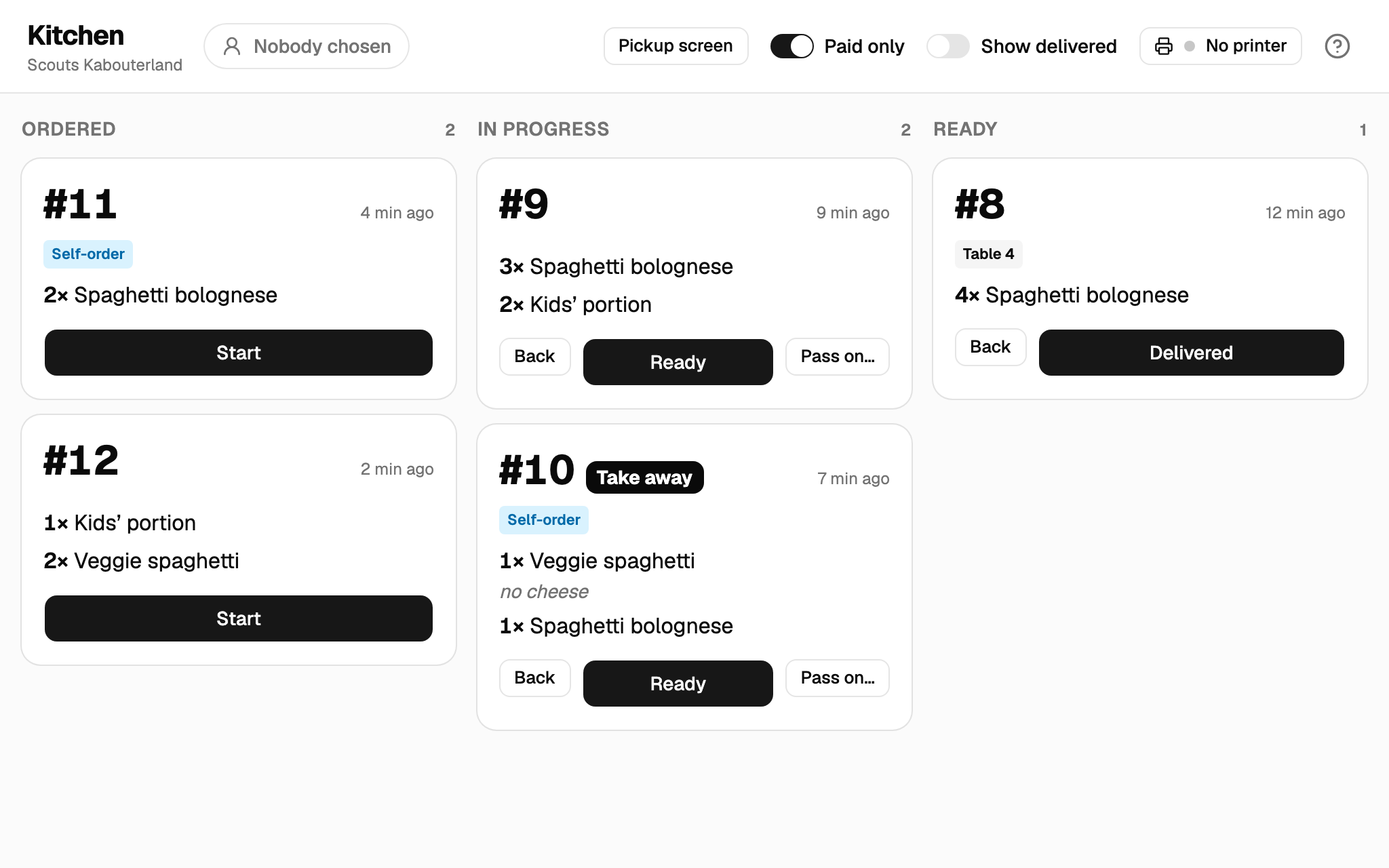
Each order is a ticket in a column:
- Ordered: tap Start when you begin on it.
- In progress: tap Ready when it is ready.
- Ready: tap Delivered when it is collected or brought.
With Back you move a ticket one column back. At the top:
- Paid only: hides orders that are not paid yet.
- Show delivered: also shows what has already been delivered.
- Nobody chosen: choose who is working, as at the till. Then you see on each ticket who is making it, you can show Only my tickets, and with Pass on… give a ticket to a colleague.
- The printer button, if the station has a printer (see Devices).
A new ticket makes a sound. Tap the screen once to turn the sound on: a browser only plays sound after a tap.
The pickup screen
The pickup screen is for the guests: it shows the numbers of one station, being prepared and ready, without names or orders. Hang it above the place where guests collect their order.
Pair it as a Pickup screen under Devices, or open it from the station screen with Pickup screen: it opens in a new window, which you drag to a second screen.