Setting up SumUp
With SumUp, customers pay by card or phone on a SumUp Solo reader. The till sends the amount to the reader; the result comes back by itself. You can test without real money, with a sandbox account and SumUp’s Virtual Solo in your browser.
For real payments
What you need
A SumUp account for your organisation and a SumUp Solo. The reader has to be online (Wi-Fi or its SIM card).
Merchant code and API key
Sign in at me.sumup.com. Your merchant code (starts with an M) is in your profile. In the developer settings (Developer settings → API keys), create a new API key and copy it - SumUp shows it only once.
In the console
Go to Settings → Payment providers, click Set keys for SumUp and enter the Merchant code and the API key. They’re stored encrypted.
Pair the reader
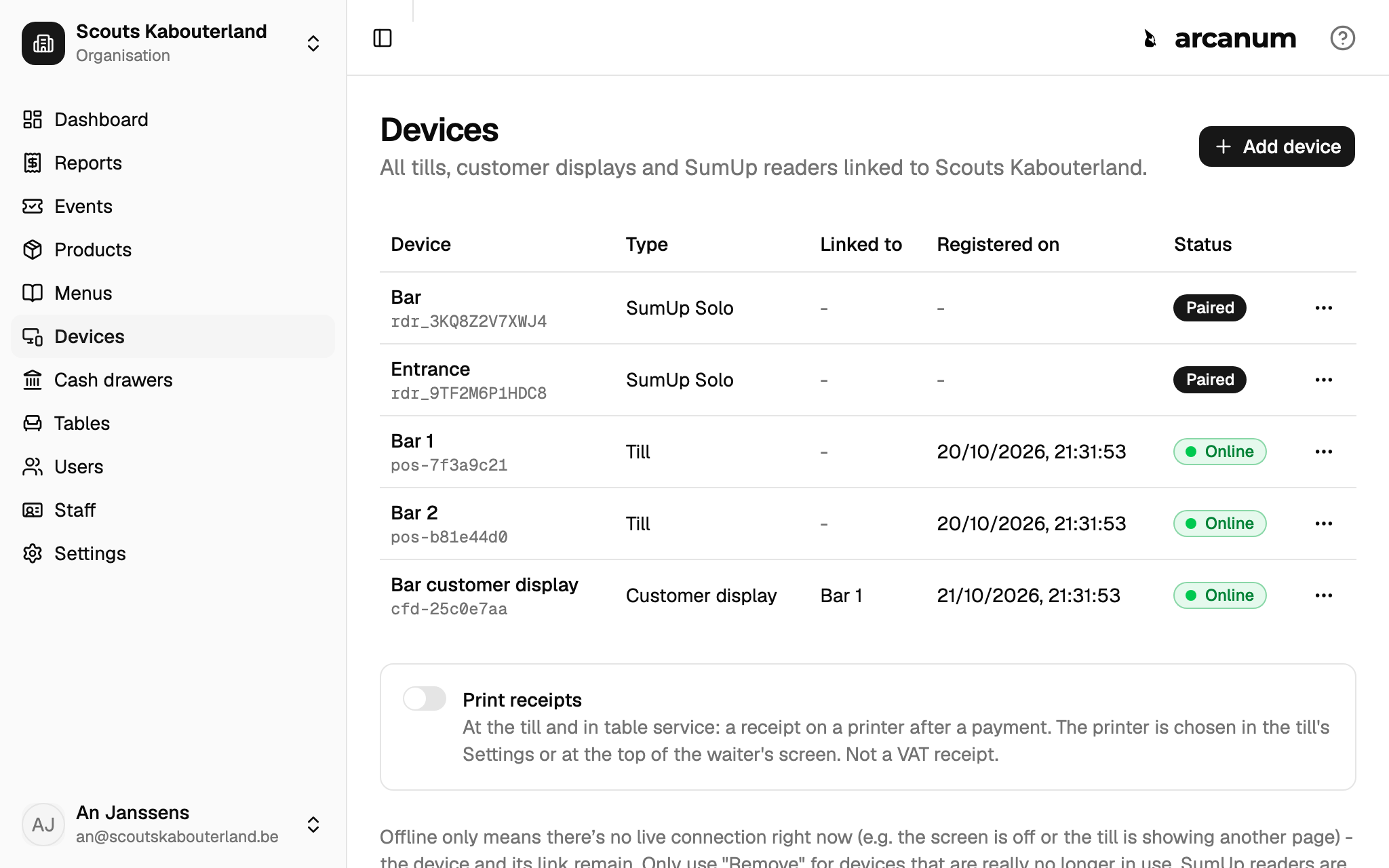
On the Solo, choose pairing via API (in its connection settings): it shows a code of 8 or 9 characters. In the console, go to Devices → Add device, choose SumUp card reader as the type, enter the code and a name (e.g. Bar) and click Pair. Confirm on the reader if it asks; it then shows as Paired.
Choose the reader on the till
On the till, open Settings and choose under SumUp Solo reader the reader next to this till. Every till can have its own reader.
Paying
Choose SumUp when settling. The amount shows on the reader; as soon as the customer has paid, the bill is settled.
For testing, without real money
Use a separate test organisation for this: an organisation has one SumUp account.
Create a sandbox account
In me.sumup.com, go to Developer settings → Sandboxes and create a sandbox account. It has its own merchant code and processes no real money.
The sandbox’s API key
Switch to the sandbox in the dashboard and create an API key there, as above.
In your test organisation’s console
Settings → Payment providers → SumUp → Set keys: the sandbox’s merchant code and API key.
Open the Virtual Solo
Open virtual-solo.sumup.com in another window or on another device. It shows a pairing code right away.
Pair it and choose it
Pair it like a real reader (Devices → Add device → SumUp card reader) and choose it on the till under Settings → SumUp Solo reader.
Test a payment
Settle with SumUp: the Virtual Solo receives the amount and approves the payment automatically. No card or PIN needed.
No Solo? If you take payments separately in the business’s SumUp app (with Tap to Pay on the phone, or a reader connected to the app), choose no reader on the till. Arcanum doesn’t see that payment: it stays open until the cashier confirms it, once the SumUp app shows it went through.